

Choose your Nex-i
Pick your frame shape, colour, temple and kit. 1 year of AI features included free.
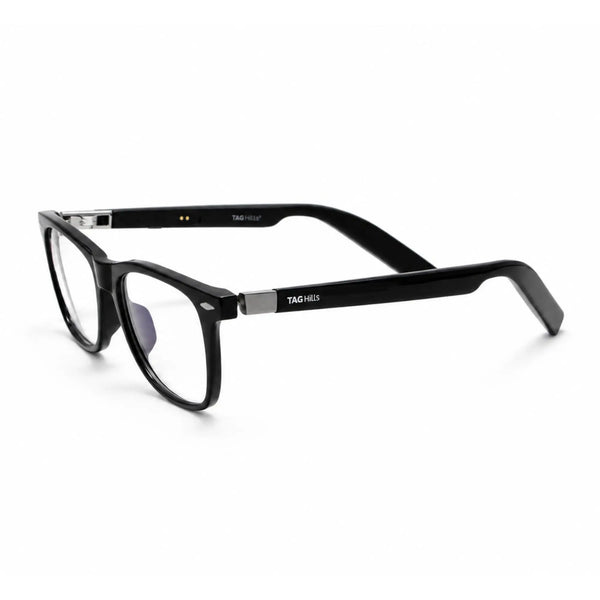
TAGHills NEX-i Smart Glasses – Wayfarer
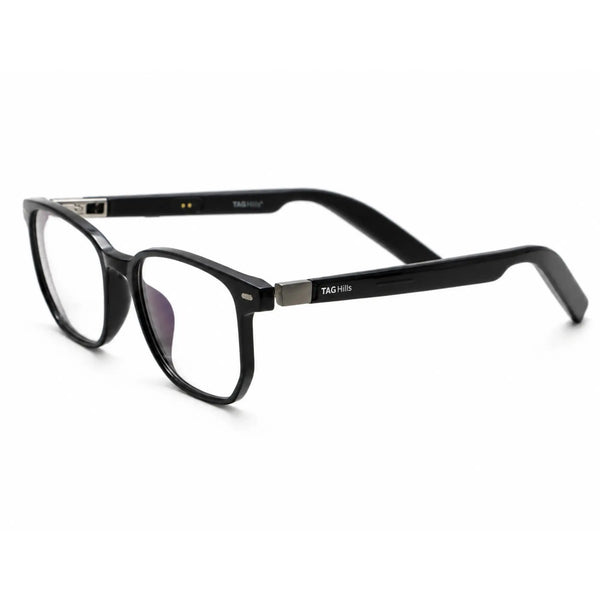
TAGHills NEX-i Smart Glasses – Square
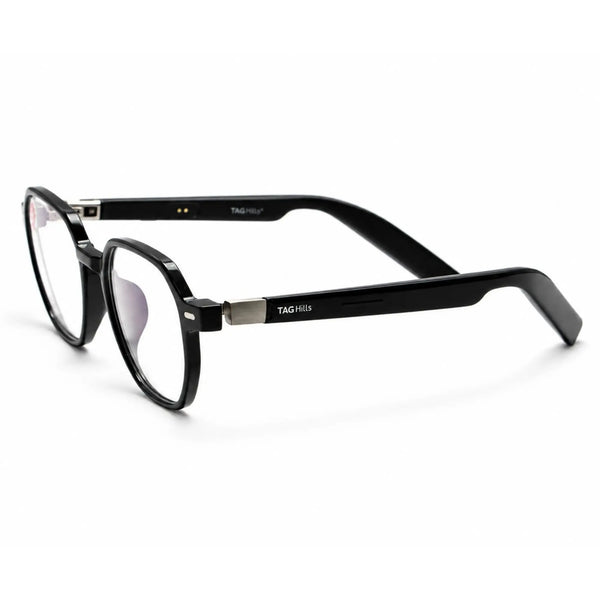
TAGHills NEX-i Smart Glasses – Geometric
Quick look at Nex-I — or open the full video or AI Star tutorial above.
Setting up your Nex-I
Everything you need to power on, pair, and start using your smart eyewear — in under 5 minutes.

What's in the box
Check that you have all four before you start.
Nex-I frame

USB-C charging cable

Magnetic clip-on lenses

Changeable Temple

Microfiber Cloth

NEX-i case
Power on and off

Power on
Open the temples — Nex-I starts automatically.

Power off
Close the temples — Nex-I shuts off automatically. To force one side off, hold the touch button under that temple for 10 seconds.
Pair with your phone
Turn on Nex-I
Open the temples, then open Bluetooth on your phone.
Connect
Search for "TAGHills Nex I" in your Bluetooth list and select it.
Listen for the tone
A short tone confirms the connection. You'll hear it again if Nex-I disconnects. While pairing, the indicator light alternates red and blue.

Set up the AI Star app
Nex-I's AI features run through the AI Star companion app — install and connect it once to unlock them.
Download and install
Search for "AI Star" on your app store, or use this link to download it directly: Download AI Star
Log in to your account
Register or log in using an email address or other available credentials.
Connect and pair
Turn on Bluetooth on your phone, find Nex-I in the list of available devices, and tap to pair. Open the AI Star app to confirm the connection on its home screen.
Activate the AI features
Tap any feature in the app — it'll prompt you to scan and activate. Scan the activation code that came with your Nex-I to bind the device and unlock all AI features.

Touch controls
Tap a section to see the gestures for each.
Music

- 1. Play or pause: long-press the right temple for 2 seconds
- 2. Volume up: slide forward on the left temple
- 3. Volume down: slide back on the left temple
- 4. Next track: slide forward on the right temple
- 5. Previous track: slide back on the right temple
Calls

- 1. Answer: slide on either temple's touch area
- 2. Hang up (cut): Slide on right temple
- 3. Answer a second incoming call: slide on the right temple
- 4. Adjust volume during a call: slide forward/back on the left temple
AI voice assistant

- Activate: long-press the left temple, on standby or while listening to music
- Works hands-free once activated
Charging

ChargingThe LED glows steady red.
Fully chargedThe LED turns off.
No connectionIf Bluetooth isn't connected, Nex-I shuts down automatically after 3 minutes to save power.
Magnetic clip-on lenses
Two tints, attached with a magnetic snap — no tools needed.

Yellow
For low light and screen glare — driving at night, evening screen time.

Black
For daytime sun — turns Nex-I into full sunglasses in one snap.
Troubleshooting
Nex-I won't turn on
I can't find "TAGHills Nex I" in my Bluetooth list
No sound, or sound in only one ear
Battery draining faster than expected
The clip-on lens won't stay attached
Still stuck?
Our team can help with pairing, controls, or anything else Nex-I related.
Chat with HUMAN